Point Mappings
Business Object Point Mappings provide a native object (internal SCADA data model) mapping for every abstract attribute of the external Enterprise data model.
Point Interface definitions are mapped to the internal SCADA data model. The Point Mapping definition must include the following.
- The target Point Definition Interface name
- A native SCADA attribute for every Point Definition Interface attribute (i.e. map the interface's "unreliable" attribute to the native SCADA "Config Bit 15")
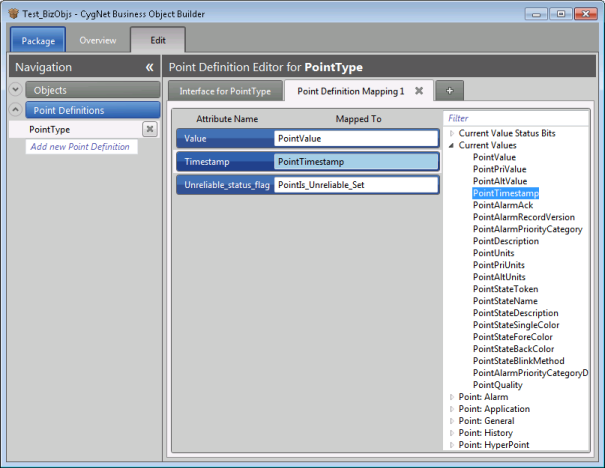
Creating, Editing, Copying, and Deleting Point Mappings
To Create a Point Mapping
- In the Business Object Builder window click the Edit tab to open the Point Definition Editor.
- If the Point Definitions list is not already displayed in the Navigation pane , click on the down arrow to display the list of point definitions.
- Click to select the Point Definition for which you want to create a new mapping.
- Click the + tab to open the Editor for the new Point Definition Mapping. A bar will be displayed for each corresponding item.
- Click in the Mapped To text box to select it. Double-click on the native attribute from the list on the right to select it and create the new mapping.
To Edit a Point Mapping
- In the Business Object Builder window click the Edit tab to open the Point Definition Editor.
- If the Point Definitions list is not already displayed in the Navigation pane , click on the down arrow to display the list of point definitions.
- Click to select the Point Definition for which you want to edit a mapping.
- On the Mapping Values drop-down menu, change the values as desired.
- Click the Delete icon to delete a mapping value.
- Click Save.
To Copy a Point Mapping
Copying a Point Mapping can be achieved by exporting the mapping with a new file name, and then importing the new file back into the mapping.
See File Import and Export Options for more information.
To Delete a Point Mapping
- In the Business Object Builder window click the Edit tab to open the Point Definition Editor.
- If the Point Definitions list is not already displayed in the Navigation pane , click on the down arrow to display the list of point definitions.
- Click to select the Point Definition which you want to delete.
- Click the X on the side of the page to delete the mapping.
- In the Delete Confirmation dialog, click Yes.


